Showing posts with label software utilization. Show all posts

Saturday, May 13, 2017

New annotation option in FME 2017

Annotations in FME

Annotations are an easy way to include description in a workspace.
There are 3 types of annotations in FME:
  1. Header annotations that are only generated when a workspace is generated.
  2. Summary annotations that are dynamic and reflect the changes in a workspace component (transformer, feature type, etc)
  3. Custom annotations are generally known as user annotations.

The image below shows all 3 annotation types.
The header annotations are above the reader and writer feature types and connection, the summary annotations is blue and describes the reader feature type, while the user annotation is by default yellow and empty of content.

The Magic of FME 2017

The #FMEWT is about to finish for 2017 and I had the luck to present in it, if you are interested in my presentation here is a link
During the preparation of the presentation I came across an unknown (for me) new functionality in the Workbench application.
This new functionality is the ability to transform ;) a summery annotation into a user annotation.
Just right click on the summary annotation and select 'Convert to Attached Annotation'

If you are a Copy& Paste kinda of a person, as I am, then this is mana from heaven.....
Now I can create a summary annotation and edit it, something that can save a lot of time.

So next to the Parameter Editor this is another excellent addition that can boost your FME development productivity.

Have Fun!

Thursday, December 29, 2016

2016 in retrospect

The end of the year is nearing and it is time to look back at the passing year and list my top 3 of FME 2016 functionalities.
At the same time its also a time to look forward to the coming year and the upcoming FME functionalities in FME 2017.

This year I actually wanted to combine both aspects into a double top 3, first my top 3 of FME 2016 functionalities and a second top 3 which involves a new FME 2017 functionality.


I hope I am not giving away a functionality that Safe intends to blog about, so if that is the case....my apologies in advance.
But personally I think that there will be so many awesome additions in 2017 that the little bit I am using doesn't even make a small dent in the pile of 2017 goodies that Safe can use to blog about.

My FME 2016 top 3

1. FeatureWriter

2016 started with the announcement (for me it felt more like a meteor fall...) that in the future FME will be used without any Readers and Writers
You probably all know what I am referring to, the birth of the FeatureWriter,
the transformer that would ".... shake most FME users to their very core!"

I have to admit that initially I didn't see what all the excitement was about, but as the year worn on and I started using it more and more, I can tell you right now that I wouldn't know how I could have done without it! (well probably using a lot more workspacesto get the same job done)

So it's no surprise that it is by far the number 1 on my top 3 for FME 2016 functionalities. Personally I think Safe succeeded in delivering what they promised and that the time of no Readers and Writers workspaces is nearing.

2. AttributeManager

The AttributeManager  was another FME 2016 functionality which slowly changes our approach into data transformation and in a good way.
No more AttributeCopier, AttributeCreator, AttributeRenamer, etc, etc necessary, a single super transformer to replace them all.

Personally I really like the AttributeManager for it capabilities, but there is one small annoying issue with it and that is the fact that it requires my attention way to often when the data schema changes.

So I have resorted to update the AttributeManager content when the workspace is finished, instead of continuously updating it. Despite that the AttributeManager makes so much possible with one single transformer and that is why it's my number 2 on the top 3 of FME 2016 functionalities.


3.WFS Paging settings
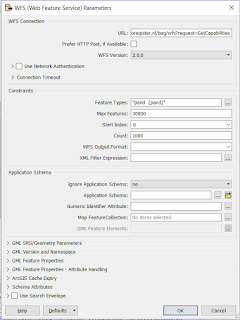
My previous post was on this awesome functionality (secretly?) added to the WFS reader .
If you use WFS OGC services a lot then I bet you are as exited as I am about this hidden gem.

In the past I have demonstrated how to use ResponcePaging in FME, but that required some inventive workaround to get all the features and overcoming the service's limitations.

Nowadays it's a matter of setting the reader settings accordingly, lean back and enjoy the logging happily passing by, while the service is queried.

For that sole reason, making my (and hopefully anybody that uses OGC WFS services) life easier I am giving the bronze medal to this FME 2016 functionality (my number 3)


This concludes my personal top 3 of FME 2016, I had lots of fun playing around with data this past year thanks to Safe Software and their great product.
I am expecting to have as much, if not more, fun with the upcoming FME 2017 functionalities.

The other top 3

Since the FME beta is always available and it's a great place to find out about new functionalities, I was searching for an idea for a post when I saw this tweet from @MadMansson which made me remember an old post where a list of certified FME professionals was created by parsing the HTML page of the Safe Software site.

So where does this all come together?  In FME 2017! where we can easily parse HTML with the brand new HTMLExtractor transformer (note to myself get cracking on CSS selectors).

So as a small homage to the previous post I put together a small workspace in which the countries with FME certified professionals are ordered by a ratio of the number of certified professionals per country divided by the country's area.

You might wonder what are the area units, well I just grabbed the first hit on Google for world countries shape and it is in the LL-WGS84 coordinate system.

Another thing to mention is that when I initially made the workspace Luxembourg was number one, but as you see recently somebody joined the club (welcome!) and now it is Singapore leading the list.

According to the same shapefile there are 43 other countries with a smaller area than Singapore, so if you are from Macau and you plan to get certified, I can promise you an eternal first on this list :)

The HTMLExtractor transformer makes it easy to grab information from the web pages and I personally think we will see more web related functionalities coming in FME 2017.

Looking forward to it!

Have a great New Year!


Sunday, June 7, 2015

Transformation made easy: the FME Cloud way.

FME Cloud provides the possibilities to have data transformed and served without any detailed knowledge of the data schema or even an application.

In my previous post, based on my FMEWT 2015 presentation, I have demonstrated how easy it is to send FME an email and let FME do the heavy lifting of getting the data, transforming it and making it available.
In that scenario the user only had to select the data and send the url.
In the next scenario the user already has some data which he needs translated. So here the email is sent with an attachment.

FME Server's email capabilities are described by a series of tutorials on the FME Knowledge Center (latest name for the old FMEPedia)
In the tutorials all the information necessary for making the most out of the incoming email is addressed.

The AERIUS project  was also presented on the FMEWT, since FME is everywhere....

The AERIUS calculator is one of the components of the national PAS project which results in a GML file.
Reading GML should not be an issue for a seasoned FME user and with the help of the Knowledge Center a beginner shouldn't have much of a problem figuring out how to point to the schema document and let FME do the work.


But what if you don't have FME or you are only interested in usable results?


Well the answer to that is: FME Cloud !

To demonstrate this I have used FME's powers to build a simple and easy to use AERIUS2FGDB translation.
The translation is event triggered which means you need to start it.


How? well that's easy:

  1. send an email to: fme@etlsolution.nl
  2. Email topic: AERIUS2FGDB_b28ba3b0-0da6-11e5-a040-028deac61efd
  3. Email attachment : AERIUS GML

Result?
The AERIUS GML gets translated to filegeodatabase (FGDB) and is made available via an email with a download link.

Are just interested in testing the methodology behind the product? I have already a AERIUS GML available for you to send as an attachment.

Interested in applying this for your organisation and your specific needs? dont esitate to contact me via itay@etlsolution.nl.

Free testing this product will be available from 8/6/2015 until 10/6/2015 between 9:00 AM and 16:00 PM (CET)

Wednesday, October 22, 2014

Heat maps and FME.

Heat map.

Heat map.

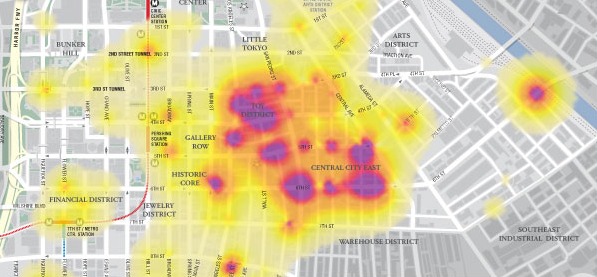
According to Wikipedia a heat map is a graphical representation of data where the individual values contained in a matrix are represented as colors.
In the past heat maps were mostly used in other sectors (biology, statistics, etc.) than the geospatial sector, where maps are the obvious way of data representation.
Nowadays there are plenty of resources to transform your data into a spatial heat map representation.


Google heat map.

The Google Developers site provides a multitude of resources and samples on how to used and incorporate Google's products. 
The Google Maps JavaScript demonstrates how a spatial heat map is created via a simple JavaScript.
Without going into too much details, the script's components include location data, a map center point and visualizations options (colors, gradients and additional functions)


JavaScript in FME.

If you mention JavaScript to an FME user, he will probably think you mean GeoJSON since that is the most common way for spatially representing Java objects (JSON or 'XML's Baby brother' )
There are dedicated readers and writers for JSON in FME and plenty of resources on the subject to be found at FMEpedia.
Since the script is essentially plain text, FME can be used to manipulate the script with a simple text writer.


Input.

highway location marker.
To demonstrate how essentially any spatial data can be represented by a heat map via FME, I made use of the national roads dataset (NWB) freely available via the Dutch SDI (PDOK)
The features used are highway location markers (point features) but also line and polygon features can be potentially represented via heat maps.

Workspace.

Actually it is a very simple workspace in which I am extracting the point coordinates into attributes, reprojecting them and concatenating them into the predefined order.
To extract the map center point a BoundingBoxAccumulator, CenterPointReplacer are used on the national border. Finally the CsmapReprojector transformer is used to bring it into the desired coordinate system (LL84).

Result.

The result is a html file that can be viewed with most browsers.
In this case I have only used FME on 3 script components and added some images into the header.
Potentially other components such as gradient colors and styling can also be directly manipulated.


The Netherlands - highway location markers heat map.


Wednesday, October 1, 2014

Georeferencing evaluation with FME.

FME and data evaluation.

FME is a great tool to validate and evaluate data (next to the many things you can do with FME)
There are plenty of resources available on the subject demonstrating FME's data validation and Q&A capabilities.

Data evaluation can involve different aspects and have many forms.
For this post I choose to evaluate how well a publicly available data set can be georeferenced (if you can add value to it and put it on a map, why shouldn't you...)
For any serious conclusions, you'll have to work it out yourself, since my main intention is to demonstrate FME capabilities (and not bad mouth anybody particularly...)

Data source.


The Dutch government publishes many data sets openly and the numbers are increasing all the time.
I choose to use the data set of the national education registry since it is highly dynamic and it contains addresses, which makes it possible to potentially georeference the features.

The data used is available in csv format, which can easily be accessed online via the CSV reader (just point it to the url). For limiting sorting and filtering the incoming data, see my previous post: Where clause on text.
This results in a continuously updated data source, which is great to have but poses a challenge when displaying the results.

 Georeferencing the data.


    For georeferencing the source data I am using the BAG Geocoding service, available via the National SDI.
    An easy way in FME to access the service is by a HTTPFetcher transformer.
    By constructing the URL in the transformer's text editor and making use of attributes values, a very flexible solution is created.

    BAG Geocoding service results.

    The BAG Geocoding service returns the location(s) in an XML snippet that translates into geometry and attributes. In case of ambiguity or lack of sufficient input, the service returns an aggregate geometry.
    Somewhere in the aggregate geometry the corresponding location and attributes can be found (well most of the times...)
    Using the total count of both georeferenced and failed features, simple statistics (percentage of correct georeferencing) can be gathered and used for display.

    HTTPFetcher

    Interpreting the results.

    Some of the 'failed' to georeference features do actually exist (BAG Web) and can be correctly geocoded by slightly changing the address used, see for example georeferenced (note the street tag) and not georeferenced (note URL used =  input address)

    Displaying the results.

    I am using Google Fusion Tables to display  the results since it is an easy way to share geographical information (article is in dutch)
    Also non-spatial data can be shared this way and the failed features are saved into a non-spatial Google Fusion Table. Needless to say FME supports both spatial and non spatial reading and writing of this format.
    Some limitations of this format are the number of features supported and that it is still considered an experimental format, something that unfortunately makes it less reliable.
    As mentioned before the input source data is updated frequently and in contrast the displayed results are static and present a moment in time.


    Map of results, created 1-10-2014.

    Findings and (possible) future developments.

    A way to keep the displayed results up to date would be to use FME Cloud, something I still have not got around to try. I imagine that using FME Cloud to run this workspace would not require almost any resources or adaptations, since most of the data is on-line.
    Some of the finding are:

    • Saving the source csv data is necessary due to memory issues (something that is easily done in the HTTPFetcher)
    • Another curious issue found is that using the postcode in the request string actually results in less features georeferenced.
    Don't forget that by the time you read this post the output might look very different.

    Saturday, August 16, 2014

    Where clause on text.

    Where clause.

    A where clause in its basic form is used to filter features and is used with database formats.
    The use of a where clause can deliver workspace related efficiency, by resulting in only the features necessary for the translation.
    You can do much more in a database where clause (joins, sub-queries), but for the purpose of this post I will stick to its basic use (e.i filtering)


    Example.

    Inspired by Safe's blog post, I have downloaded some bird tracking data* from the Movebank Data Repository .

    The data comes in a csv format, which is considered a database format in FME, but is actually plain text. The goal is to present the features on a map.

    Cory's shearwater - going the distance.

    Data content.

    The csv file contains location information as lat/long coordinates among other types of sensor related information.
    For more information about the data see the readme file provided.


    Data transformation.

    read data that cannot be used ?
    To transform the location information into point features the VertexCreator transformer can be used.
    However when doing so, disregarding the first law of FME (which is?), the transformation will halt because some features do not contain values in the location columns.
    That can be easily solved by testing the data before creating the geometry. 
    But by reading the entire dataset and then filtering unnecessary (or unusable) features, you are reading more than is necessary and it is not efficient.
     

    Filtering while reading.

    To my surprise, I have stumbled across a new functionality in the csv reader, that enables such filtering.
    I say to my surprise, since I totally missed out on the announcement related to this addition.
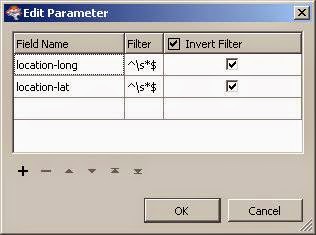
    This functionality is found at the csv reader parameters. First you have to enable it and then set it.

    According to the documentation: "The filtering is done by a regular expression string that will be compared against the values of attribute fields specified."

    This means that if you know your regular expressions, serious complex filtering can take place.

    For this case it is a simple string that filters the lat/long attribute fields, returning only columns in which values are found.
    Simple regular expression.

    Workspace.

    With and without filtering.
    This new functionality offer new possibilities that did not exist before FME 2014. And even if it's not a where clause as in a database, the abilities to filter and sort are welcome useful additions.


    * Gagliardo A, Bried J, Lambardi P, Luschi P, Wikelski M, Bonadonna F (2013) Oceanic navigation in Cory's shearwaters—evidence for a crucial role of olfactory cues for homing after displacement. Journal of Experimental Biology, v. 216, p. 2798-2805.


    Saturday, August 2, 2014

    Built in geometry validation.

    Post origin.

    The idea for this post comes from a tweet by a FME user (thanks Richard!) and since it is cucumber time I thought what the heck why not try it out myself.

    Geometry validation in FME.

    The GeometryValidator is the transformer for geometry validations in FME. To be able to validate the data you need to read it into the workspace.

    valid?
    With database formats, with their built in ability to validate geometry, validation and tagging can take place when reading.
    In Oracle that can be done with the geometry-related PL/SQL subprograms in the SDO_GEOM package.
    In this case I am using the sdo_geom.validate_geometry_with_context  subprogram to locate and tag geometry errors.

    Built in geometry validation in the Oracle reader.

    To validate the data while reading, the SQL statement should be used in the feature types parameters select statement (not to be confused with the reader select statement)
    When configured correctly both valid and invalid features are returned.

    As you all know, databases return error's as a number and error location and that there are internal ways to use existing database capabilities to make the error's more human readable.
    But since FME is great at reaching out to the web, grabbing data and making use of it, what can be better (and more fun) than parsing the web pages with the error's descriptions and adding it to the features?

    Adding error descriptions.

    Since I am using Oracle, the logical place to search for error's descriptions is the Oracle on-line documentation. Grabbing the web page is done with the HTTPFetcher, parsing it with the XMLFragmenter and then it's a matter of testing for the correct string. To finish it up I have created a custom transformer that does exactly that.
    Workspace.


    Useful?

    As in most things FME, there are many ways to achieve the the same result, and it's a matter of personal preference and experience on how one approaches a problem. That said, a problem should not be the sole reason for using FME. It can also be just for fun.
    So is it useful to have built in geometry validation and tagging? well I guess it is since otherwise why would anybody try?
    Some other advantages might be:
    • Awareness of  geometry error's (do you assume the data is always geometrically correct?)
    • The option to act upon that awareness.
    • Reducing the number of features that need repair. In translations that involve a high volume of data and long computations, reducing the number can result in gaining workspace related efficiency.

    Results.

    Monday, May 19, 2014

    All PDOK atom feeds in FME.

    Recently I was approached about accessing atom feeds services from the Dutch national SDI (PDOK).

    After writing several posts on the subject I realized that having access to all of the atom feeds services in FME, would be a nice challenge and a useful addition.
    So I set about figuring out what would be the best way to set it up. I realized that I wanted to have the option to select an individual service or several of them.

    How to get all the URL's

    Normally the GEORSS reader is used to access a XML feed.
    To be able to access a service you would have to select the URL from the web page and paste it into the reader.
    This approach works fine, if you access a couple of services, but I would like to have them all selected.
    Especially when new services are added or deleted.
    Once I have all of them I can choose the ones I would like to use in my workspace.

    Well since FME is great at accessing data on the web, Why not use it to retrieve the URL's of all the services?

    The PDOK site is built with a certain logic, all of the services are alphabetically ordered.
    Using that logic in FME enables you to select the services by accessing the HTML pages displaying the services on the PDOK website.


    PDOK web page HTML
    The XMLFragmenter can slice through the web page HTML like any other XML document.
    Parsing the XML (another great feature of FME) enables the final selection of the URL's.

    FME workspace

    Result

    So after some XML parsing I got a list of all of the current PDOK atom feed services.
    You might think, well I can just sit and copy paste the URL's into a text file.....well sure you can! nobody is stopping you :)
    But by using FME and it's XML capabilities, you always end up with an updated list.
    When services are deleted or new ones introduced, the resulting list will reflect that.
    Beside that, once you have the services list available, you can continue your data transformation, something which is not really possible with a text file :)

    Atom feeds services list.


    Atom feeds in FME

    As with anything FME, there are more ways to skin the proverbial cat ;)
    One way of using the services list in a workspace, can be by using a startup python script.
    Yet another way would be to wrap the workspace into a custom reader, so that it can become part of your regular FME readers.

    And finally you can just opt to continue developing the workspace.
    There are quite a lot of FME transformers dedicated to web services, two of them are specific for GEORSS feeds.
    In this scenario the GeoRSSFeatureReplacer is very useful to extract all the information from the server response into attributes.

    Services selection

    The services selection should be done at run time to provide extra flexibility.
    This is where a TestFilter and user parameter combo comes in handy.
    To retrieve the parameter value(s) into my workspace, I use the so adequately named :) > ParameterFetcher
    Then it's a simple matter of setting up the correct test to retrieve the selected services.

    So to wrap it up:
    1. Now I have a new PDOK atom feeds reader in FME, and I know for sure that it will always provide me with an updated list of services. 
    2. As you know FME is a no code approach. 
    3. With just 8 transformers the workspace is super simple.
    Life made easy the FME way, interested? give me a call.


    Monday, March 17, 2014

    Combining BAG and AHN2 Point cloud data.

    Data sources

    In previous posts , I demonstrated how the BAG data and AHN2 rasters can be accessed by FME.

    What I would like to demonstrate now, is how to fetch the AHN2 point cloud data and combine it with the BAG buildings.
    This in effect will show how easy it is to add the elevation values to the BAG buildings.
    The additional elevation information makes it possible for example to classify the buildings roof type (flat vs.slanting) and transform the 2D BAG buildings into 3D objects.

    BAG

    The BAG data was accessed for a small area of interest (AOI), this area contains 2D footprints of buildings.

    AHN2 Point Cloud

    Much like the AHN2 raster data, the on-line point cloud data can be easily accessed via FME. One of the differences in this workspace is that the FeatureReader transformer is used instead of the RasterReader.


    Combining the data

    For spatially relating features there are a few options, you can go for the 'old fashion' method by clipping the point cloud data for each building or by using the SpatialRelator, but my preferred way is to use the SpatialFilter.
    Why? well mainly due to performance issues and the fact that no extra transformers are necessary as is the case with the SpatialRelator.
    So after relating the features, the elevation information is in fact added to the buildings. (whether it represents the correct height is another matter, which is not addressed here).
    There are lies, damned lies and statistics - Mark Twain.

    So how to go about adding more than just the elevation information?
    Well after spatially relating the point cloud to each building, a number of statistics can be computed with the help of the StatisticsCalculator.

    This added information can be used for initial classification purposes, for example buildings with a low range value can be classified to have flat roofs.


    The Workspace.


    After creating the AOI (Creator) the BAG data is fetched off the Internet in the BAG custom transformer.
    For more info on how to do that see this previous post.
    The point cloud are, in much the same way, fetched from the web, unfortunately it is not possible to grab only the point cloud features of the AOI. 

    Point cloud AHN2 custom transformer.


    Once all data is read, combining it is done with the SpatialFilter and the StatisticsCalculator finishes the job by adding additional elevation statistics (don't forget the Group By setting)
    Note that I have opted for the summary port of the StatisticsCalculator, since I am no longer interested in the points themselves. (tip for good practice, drop anything you don't need ASP!!)

    To be able to share some results I have created a 3D pdf  that contains a building footprint (select it to view elevation statistics), point cloud data and additionally derived features (TIN, contours) (tip: download it, and open with Adobe, the web brouwser cannot display it correctly)
    Notice the spikes in the point cloud data and derived features, some of them can be attributed to the roof material, others to windows and lastly to vegetation (trees), how do I know? well here is a hint (switch to satellite and head north)