Showing posts with label Experience. Show all posts

Saturday, January 14, 2017

PDOK Geocoder Service

The new geocoding service (Locatieserver)


The Dutch National SDI (Spatial Data Infrastructure) PDOK has recently introduced a new geocoding service (Locatieserver) that will in due time replace the current one.
The new service is very well documented, based on open source stack, available to all and the PDOK community is available for information about the service and eventual feedback. Naturally most of the information available is in Dutch.
For these same reasons I am not going to go into details about the services.

FME and the Locatieserver

Essentially  the geocoding service is an API and communicating with a API's is well demonstrated in the Safe Software Blog.

There are however a few issues that needs some mentioning, especially if you can't read Dutch ;)

  • The geocoding service is based on the BAG, the national building and addresses registration system.
  • The geocoding service enables you to choose from two different types of services. The free service, which is comparable to the current geocoding service and the suggest & lookup service that is composed of two endpoints that essentially work together.
  • The geocoding services offer a wide range of options that are not available in the current geocoding service.

Putting it all together

Back in 2013 when I started writing about FME and share examples on how to use it, there was no real easy way how to share your workspaces, beside the making them available for download of mailing them.
Luckily nowadays the FME Hub is incorporated into the Workbench application, which makes it very easy to grab a transformer created by somebody else.

For demonstration purposes I have actually decided on sharing a template and not a transformer.
My intention is to demonstrate how you can make a simple start with this service and FME especially when taking in consideration all the options this services provides.

PDOKLocatieserver template

The template

A FME template is a great way of sharing workspaces because you can incorporate the source data in it. In this specific case the source is an online CSV file that contains addresses of educational facilities.
As simple validation and clearing some duplicate data is done and then the service type selection is done via a Tester transformer and user parameter.
The geocoding services return JSON by default, but XML is also available for the XML savvies.

Both types of services return multiple results and each result as a score. The highest the score value the highest the probability that it's the best match.

Once the result with the highest score is sorted per request it a simple matter to transform it into a point feature with the GeometryReplacer transfomer.

I have selected to use the geometrie_rd attribute to which contains the coordinate values in the Dutch national coordinate system, if you are more internationally oriented the service also returns a set of coordinates in WGS84.

The results are written into a SQLlite database, a format that is supported by most of the open source and propriety GIS applications.

What to try it out yourself? first of all download FME 2017 (still in Beta while writing this post) and check out FME Hub for the template.

Have Fun!
    

Tuesday, November 8, 2016

WTwFs?

HU?

I wanted to share with you something I accidentally came across while playing around with FME.
After finding this I was astonished that no special (spatial?) reference to this addition was made other than the standard documentation.

Doing a bit of snooping around I've found this addition was already added to the 2016.1.0.0 (build 16492) FME Desktop version.


Well what's it all about? well lets say that I consider it to be as much as a game changer as the introduction of THE game changer of  FME 2016, the FeatureWriter.

It might not be as all encompassing as the FeatureWriter itself, but it does make it a lot easier for many people that work with OGC services on a daily basis.

OGC

Several OGC (Open Geospatial Consortium) services formats have been supported for some time now in FME Desktop.

http://www.opengeospatial.org/
The Web Map Service (WMS) is great as a background map in your Data Inspector, but other than that there is not much use for it.

Now the WFS (Web Feature Service) that's more like it! Data that we can play around with in FME to transform, combine and write to our favorite formats.

The WFS comes in different versions and each version allows for a different interaction with the service.


The services are usually restricted to allow a certain maximum number of features to return per request. That is done so that the system serving the data should not be overrun by requesting all the features in one go.

The 2.0.0 version allows for ResponsePaging which is the mechanism that allows users to request all the data but in a orderly manner.

ResponsePaging 

In the past I have shown how it is possible to use this mechanism in FME, but now its made even easier!

Now is response paging incorporated into the WFS reader, so that once you select the 2.0.0 services version, new settings specific for response paging are available.


The Start Index and Count parameters enable you to control the response paging, sit back and relax as FME manages the data requests for you.

First of all excellent addition! but what blows my mind is that NO MENTION of this was reported or communicated!!
I really think you guys at FME headquarters need to take some more credit.


I know for sure that you just made my life and lots of others easier so that we can do this...


while FME is doing the heavy lifting.


Tuesday, March 1, 2016

XML is all around us

The Past

In 2014 I wrote about how to get all of the Dutch SDI (PDOK) services into FME by creating a custom reader.

With the new XML abilities in FME 2016, I was wondering if a better job can be done.

I set about creating a second custom reader that not only returns constantly updated results (services url's) but provides them in such a way that can be directly used futher down the transformation.

The Present

The new XML abilities in FME 2016 makes life so much easier. It's still early in the year but I am already sure that the new ability to scan the input XML is one of my top 3 of FME 2016.

Couple that with the setting to limit the maximum schema features to scan, and you get a very powerful tool that makes the days of wrestling with large XML files history.

The PDOK URL Reader

As with the previous custom reader, all of the services provided by PDOK are returned by the reader.
During the development I actually got a verification that the reader works properly since 2 new services were automatically added to the reader's results.

As mentioned before, I wanted to improve the previous reader, this time an attribute (ServiceFeatureType) containing the WFS feature types is provided.
This attribute, along with the url attribute, can be directly used in the FeatureReader transformer to access the WFS service.

Why only the WFS services? the short answer is that FME is all about data transformation and there is no point in making the feature types of the other services types (WMS, WCS and WMTS) available, because you cannot do much with them anyway.

The Future

The future is already here! (well if you were a kid in the 80's)
Anyway what I mean to say is that nowadays is it much easier to share.

The FME Hub is a new feature that makes sharing and publishing much easier. I wonder if it is the future of the FME Store, but that can only be verified by somebody from Safe.

The FME hub is where you can also find my PDOKURLReader among other amazing stuff.
This reader is self-updating and lets you for example access all of the PDOK WFS features of a specific area.

The following workspace shows how you could go about achieving that.
Example FME workspace

The results look like this.

BAG and AAN WFS features
Have fun and let me know what you think of it.

"FME" is a registered trademark of Safe Software Inc.

Wednesday, December 17, 2014

BGT 2 GBKN

The BGT.

The Registration Large Scale Topography (BGT) is a detailed topological digital map of the Netherlands in which all physical objects such as buildings, roads, water and land cover are unambiguously registered.

The last years the entire geo sector of the Netherlands is busy constructing this polygon based map that will ultimately replace the old line based map (GBKN).

This huge national endeavor encompasses ministries, national agencies, municipalities, provinces, companies and the national cadastral agency.

The transition from a line based map to a polygon map is not an easy one and requires continuous tunning and collaboration between the parties involved.

BGT in PDOK.

FME and the BGT. 

Pricipally this is a task that can be described as CAD to GIS conversion in FME terms.
Most of the dutch GIS companies are in someway involved by assisting the parties involved to assemble their part of the map.

Unfortunately a large sector of the civil engineering CAD users need to adjust their work methods to a polygon based map.

This is where FME can be used to reverse engineer the GIS map into a line based map, something that is more commonly used in the civil engineering CAD based sector.

BGT - CityGML format.

GIS 2 CAD with FME.


To demonstrate how easily this task can be done with FME, I am making use of a small part of the publicly available BGT obtained from the dutch SDI (PDOK). For more information on CAD 2 GIS translation and resource with FME see FMEpedia.


Step 1: Polygons 2 lines.

Converting polygons to lines is a no-brainer for a seasoned FME user, but you do need some tricks up your sleeve to successfully accomplish that for all of the polygon objects.

Step 2: Lines priority.

To prioritize the resulting lines I am using the AttributeValueMapper transformer, this is just one of the many way to do this, but for this example it is sufficient.

Step 3: Generating prioritized lines.

Once the priority is assigned it is a matter of making use of the priority by testing and reordering to achieve the desired results.

Final step: Writing to CAD.

Result DWG.
For the purpose of this demonstration I have created a DWG file for viewing the results. The visualization of the lines is not according to any template, but that is something that can easily be done with FME.

Real world example.

This demo is based on a solution already used by the municipality of Gorinchem.
The solution created allows the user to transform the polygon map into a DWG defined by a template file.


The solution also provides the user the ability to reorder the generated lines, set new visualization rules and decide with layers should be included in the output.

If you don't believe me, just ask Hans......

Small tip for reading the BGT in FME, use the CityGML reader with the imgeo xsd provided by Geonovum or simply download this workspace and follow the instructions.

Wednesday, October 22, 2014

Heat maps and FME.

Heat map.

Heat map.

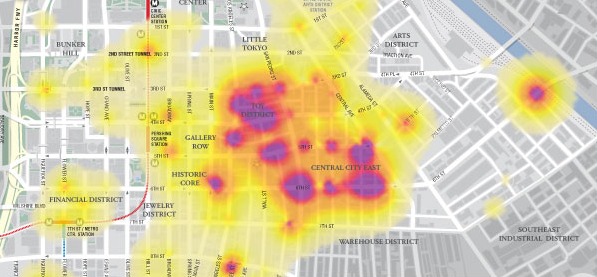
According to Wikipedia a heat map is a graphical representation of data where the individual values contained in a matrix are represented as colors.
In the past heat maps were mostly used in other sectors (biology, statistics, etc.) than the geospatial sector, where maps are the obvious way of data representation.
Nowadays there are plenty of resources to transform your data into a spatial heat map representation.


Google heat map.

The Google Developers site provides a multitude of resources and samples on how to used and incorporate Google's products. 
The Google Maps JavaScript demonstrates how a spatial heat map is created via a simple JavaScript.
Without going into too much details, the script's components include location data, a map center point and visualizations options (colors, gradients and additional functions)


JavaScript in FME.

If you mention JavaScript to an FME user, he will probably think you mean GeoJSON since that is the most common way for spatially representing Java objects (JSON or 'XML's Baby brother' )
There are dedicated readers and writers for JSON in FME and plenty of resources on the subject to be found at FMEpedia.
Since the script is essentially plain text, FME can be used to manipulate the script with a simple text writer.


Input.

highway location marker.
To demonstrate how essentially any spatial data can be represented by a heat map via FME, I made use of the national roads dataset (NWB) freely available via the Dutch SDI (PDOK)
The features used are highway location markers (point features) but also line and polygon features can be potentially represented via heat maps.

Workspace.

Actually it is a very simple workspace in which I am extracting the point coordinates into attributes, reprojecting them and concatenating them into the predefined order.
To extract the map center point a BoundingBoxAccumulator, CenterPointReplacer are used on the national border. Finally the CsmapReprojector transformer is used to bring it into the desired coordinate system (LL84).

Result.

The result is a html file that can be viewed with most browsers.
In this case I have only used FME on 3 script components and added some images into the header.
Potentially other components such as gradient colors and styling can also be directly manipulated.


The Netherlands - highway location markers heat map.


Sunday, September 7, 2014

FME and 3D printing.

3D printing.

3D printing has been around since the 1980's, but it is only in the last few years that a real boom in its application has taken place especially for domestic use.
The most commonly used format (e.i de facto standard) is the STL, which comes in two types (ASCII and Binary).
3D print.

STL format and FME.

If you search for this format in the Readers and Writers documentation, you will find that FME does not support it.
Well not directly since no reader or writer are available, but indirectly, because it is plain text and FME can create and write STL files.

3DS to STL transformation.

There are lots of 3D files available on the web, and since it was around lunch time... I have selected this fork for testing.
3DS in the Data Inspector.
The 3DS fork is represented as a IFMEMesh geometry, which is to say that it is composed of parts that do not necessarily have a topological or spatial relationship.

These are also the parts that need to be represented in the STL format, adhering to simple format definitions.

So its not surprise that with FME the mesh geometry can be transformed and written to the STL format.

Workspace.

The workspace is quite simple and there are but a few steps necessary.
  1. Firstly decomposing the geometry to its components.
  2. the coordinates are extracted into attributes, here is also where I drop the geometry since it is not needed anymore (get rid of anything unnecessary, another FME rule).
  3. Some formatting is taking place to represent the coordinates as floating point numbers (StringFormatter), although some applications export into STL without the floating point representation.
  4. Finally creating the output by aggregating the coordinate values and concatenation.
A text file writer is all that is necessary to write the STL format.

 Result.

Result STL file.
Since FME does not support the STL format it cannot be viewed in the Data Inspector, but no worries there are plenty of visualization tools available.
I am using the freely available Meshmixer to display the result.

I dont have a 3D printer, so in case you have tried yourself to create a STL file with FME and printed the result, it would be great to know.

Saturday, August 16, 2014

Where clause on text.

Where clause.

A where clause in its basic form is used to filter features and is used with database formats.
The use of a where clause can deliver workspace related efficiency, by resulting in only the features necessary for the translation.
You can do much more in a database where clause (joins, sub-queries), but for the purpose of this post I will stick to its basic use (e.i filtering)


Example.

Inspired by Safe's blog post, I have downloaded some bird tracking data* from the Movebank Data Repository .

The data comes in a csv format, which is considered a database format in FME, but is actually plain text. The goal is to present the features on a map.

Cory's shearwater - going the distance.

Data content.

The csv file contains location information as lat/long coordinates among other types of sensor related information.
For more information about the data see the readme file provided.


Data transformation.

read data that cannot be used ?
To transform the location information into point features the VertexCreator transformer can be used.
However when doing so, disregarding the first law of FME (which is?), the transformation will halt because some features do not contain values in the location columns.
That can be easily solved by testing the data before creating the geometry. 
But by reading the entire dataset and then filtering unnecessary (or unusable) features, you are reading more than is necessary and it is not efficient.
 

Filtering while reading.

To my surprise, I have stumbled across a new functionality in the csv reader, that enables such filtering.
I say to my surprise, since I totally missed out on the announcement related to this addition.
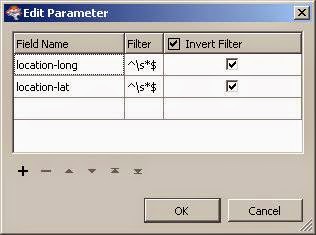
This functionality is found at the csv reader parameters. First you have to enable it and then set it.

According to the documentation: "The filtering is done by a regular expression string that will be compared against the values of attribute fields specified."

This means that if you know your regular expressions, serious complex filtering can take place.

For this case it is a simple string that filters the lat/long attribute fields, returning only columns in which values are found.
Simple regular expression.

Workspace.

With and without filtering.
This new functionality offer new possibilities that did not exist before FME 2014. And even if it's not a where clause as in a database, the abilities to filter and sort are welcome useful additions.


* Gagliardo A, Bried J, Lambardi P, Luschi P, Wikelski M, Bonadonna F (2013) Oceanic navigation in Cory's shearwaters—evidence for a crucial role of olfactory cues for homing after displacement. Journal of Experimental Biology, v. 216, p. 2798-2805.


Monday, May 19, 2014

All PDOK atom feeds in FME.

Recently I was approached about accessing atom feeds services from the Dutch national SDI (PDOK).

After writing several posts on the subject I realized that having access to all of the atom feeds services in FME, would be a nice challenge and a useful addition.
So I set about figuring out what would be the best way to set it up. I realized that I wanted to have the option to select an individual service or several of them.

How to get all the URL's

Normally the GEORSS reader is used to access a XML feed.
To be able to access a service you would have to select the URL from the web page and paste it into the reader.
This approach works fine, if you access a couple of services, but I would like to have them all selected.
Especially when new services are added or deleted.
Once I have all of them I can choose the ones I would like to use in my workspace.

Well since FME is great at accessing data on the web, Why not use it to retrieve the URL's of all the services?

The PDOK site is built with a certain logic, all of the services are alphabetically ordered.
Using that logic in FME enables you to select the services by accessing the HTML pages displaying the services on the PDOK website.


PDOK web page HTML
The XMLFragmenter can slice through the web page HTML like any other XML document.
Parsing the XML (another great feature of FME) enables the final selection of the URL's.

FME workspace

Result

So after some XML parsing I got a list of all of the current PDOK atom feed services.
You might think, well I can just sit and copy paste the URL's into a text file.....well sure you can! nobody is stopping you :)
But by using FME and it's XML capabilities, you always end up with an updated list.
When services are deleted or new ones introduced, the resulting list will reflect that.
Beside that, once you have the services list available, you can continue your data transformation, something which is not really possible with a text file :)

Atom feeds services list.


Atom feeds in FME

As with anything FME, there are more ways to skin the proverbial cat ;)
One way of using the services list in a workspace, can be by using a startup python script.
Yet another way would be to wrap the workspace into a custom reader, so that it can become part of your regular FME readers.

And finally you can just opt to continue developing the workspace.
There are quite a lot of FME transformers dedicated to web services, two of them are specific for GEORSS feeds.
In this scenario the GeoRSSFeatureReplacer is very useful to extract all the information from the server response into attributes.

Services selection

The services selection should be done at run time to provide extra flexibility.
This is where a TestFilter and user parameter combo comes in handy.
To retrieve the parameter value(s) into my workspace, I use the so adequately named :) > ParameterFetcher
Then it's a simple matter of setting up the correct test to retrieve the selected services.

So to wrap it up:
  1. Now I have a new PDOK atom feeds reader in FME, and I know for sure that it will always provide me with an updated list of services. 
  2. As you know FME is a no code approach. 
  3. With just 8 transformers the workspace is super simple.
Life made easy the FME way, interested? give me a call.


Monday, April 7, 2014

FME and Open Geospatial Consortium (OGC) Sensor Observation Service (SOS)

Sensor Observation Service (SOS)

The Open Geospatial Consortium (OGC) implemented the SOS standard
that basically returns sensor and observation data via XML. (yey!)
3 main functions are supported:
  1. GetCapabilities - what server provides
  2. DescribeSensor - information about a sensor
  3. GetObservation - observation data

Naturally with FME all of these functions can be accessed and the data retrieved to any supported GIS and database format.


FME and web services.

There is already a great webinar displaying how, without a single line of code, a variety of web services are accessed and made with FME. In the webinar the observation data is displayed in the Data Inspector (with a background map) and the table view is used to sort the measurement values.
As with all FME webinars, the workspaces are made available.
Demo workspace

IOOS Demo Workspace.

After viewing the webinar, downloading the workspaces and exploring them, I wanted to expand the SOS demo by retrieving the sensor information.
The demo workspace is well annotated and the use of bookmarks is demonstrated.
By the way, did you notice that once you use bookmarks, you actually have your technical design?


Demo workspace +
 In the developed version of the workspace the upper part is the same as in the demo.
I did , however, change the location of the creator and ParameterFetcher, to be able to distinguish between the service functions.

The added parts are far from complicated, and that is actually the beauty of it, with no code and a minimal number of transformers all data can be easily retrieved.


The sensor information retrieved also contains the sensor location (among other things) to be able to share these results I have created this Google map (with FME, naturally...) that shows the location of the stations.
One of my favorite locations is Sand Island, Midway Islands. Does anybody know what species are all those bird chicks..? 
Google Street View


Monday, March 17, 2014

Combining BAG and AHN2 Point cloud data.

Data sources

In previous posts , I demonstrated how the BAG data and AHN2 rasters can be accessed by FME.

What I would like to demonstrate now, is how to fetch the AHN2 point cloud data and combine it with the BAG buildings.
This in effect will show how easy it is to add the elevation values to the BAG buildings.
The additional elevation information makes it possible for example to classify the buildings roof type (flat vs.slanting) and transform the 2D BAG buildings into 3D objects.

BAG

The BAG data was accessed for a small area of interest (AOI), this area contains 2D footprints of buildings.

AHN2 Point Cloud

Much like the AHN2 raster data, the on-line point cloud data can be easily accessed via FME. One of the differences in this workspace is that the FeatureReader transformer is used instead of the RasterReader.


Combining the data

For spatially relating features there are a few options, you can go for the 'old fashion' method by clipping the point cloud data for each building or by using the SpatialRelator, but my preferred way is to use the SpatialFilter.
Why? well mainly due to performance issues and the fact that no extra transformers are necessary as is the case with the SpatialRelator.
So after relating the features, the elevation information is in fact added to the buildings. (whether it represents the correct height is another matter, which is not addressed here).
There are lies, damned lies and statistics - Mark Twain.

So how to go about adding more than just the elevation information?
Well after spatially relating the point cloud to each building, a number of statistics can be computed with the help of the StatisticsCalculator.

This added information can be used for initial classification purposes, for example buildings with a low range value can be classified to have flat roofs.


The Workspace.


After creating the AOI (Creator) the BAG data is fetched off the Internet in the BAG custom transformer.
For more info on how to do that see this previous post.
The point cloud are, in much the same way, fetched from the web, unfortunately it is not possible to grab only the point cloud features of the AOI. 

Point cloud AHN2 custom transformer.


Once all data is read, combining it is done with the SpatialFilter and the StatisticsCalculator finishes the job by adding additional elevation statistics (don't forget the Group By setting)
Note that I have opted for the summary port of the StatisticsCalculator, since I am no longer interested in the points themselves. (tip for good practice, drop anything you don't need ASP!!)

To be able to share some results I have created a 3D pdf  that contains a building footprint (select it to view elevation statistics), point cloud data and additionally derived features (TIN, contours) (tip: download it, and open with Adobe, the web brouwser cannot display it correctly)
Notice the spikes in the point cloud data and derived features, some of them can be attributed to the roof material, others to windows and lastly to vegetation (trees), how do I know? well here is a hint (switch to satellite and head north)